
OCI: Network Path Analyzer
It surprises me how often I have issues with network connectivity. All the years of training, wizards, templates, but there is always something to fix. Lucky me, Oracle Cloud offers you a great tool - the Network Path Analyzer.


It surprises me how often I have issues with network connectivity. All the years of training, wizards, templates, but there is always something to fix. Lucky me, Oracle Cloud offers you a great tool - the Network Path Analyzer.
Let's start with the scene:
- I have a templated Virtual Cloud Network with public and private subnets, with all default gateways.
- A single instance in the public subnet is up and accessible from a local terminal application.
- The default security list was updated to allow IPv6 and IPv4 traffic for ports 80 and 443.
- An instance firewall allows HTTP/HTTPS services in the public zone
- Public domain resolves to the public IPv4 address of the instance
Yet, the service on the box is not reachable. Let's start with the necessary preparations.
- Find your router's IP address. Usually, I've run curl http://ip.me, but on MacOS, it prefers the IPv6 stack, and when it reports IPv4, the result is questionable. To find my public IPv4 address, I used the service htps://ip4only.me and its counterpart - https://ip6only.me.
- Make sure your firewall ports are open, and you have a listener on the port in question.
[opc@oci-vm ~]$ sudo firewall-cmd --list-all
public (active)
  target: default
  icmp-block-inversion: no
  interfaces: enp0s6
  sources:
  services: dhcpv6-client http https ssh
  ports:
  protocols:
  forward: yes
  masquerade: no
  forward-ports:
  source-ports:
  icmp-blocks:
  rich rules:
[opc@oci-vm ~]$ mkdir -p /tmp/empty/
[opc@oci-vm ~]$ sudo python -m http.server 80
Serving HTTP on 0.0.0.0 port 80 (http://0.0.0.0:80/) ...
Now we have everything we need for the network tests.
- We start by accessing the Oracle Cloud Infrastructure Console - https://cloud.oracle.com. Make sure your account has sufficient privileges to create IAM policies; otherwise, you should request that account administrators adjust your privileges, as in the next few steps.
- The network path Analyzer may offer you to create the policy in advance, but you may want to customize the policy rules below to meet your specific security requirements. The generic set of statements is below:
allow any-user to inspect compartments in tenancy where all { request.principal.type = 'vnpa-service' }
allow any-user to read instances in tenancy where all { request.principal.type = 'vnpa-service' }
allow any-user to read virtual-network-family in tenancy where all { request.principal.type = 'vnpa-service' }
allow any-user to read load-balancers in tenancy where all { request.principal.type = 'vnpa-service' }
allow any-user to read network-security-group in tenancy where all { request.principal.type = 'vnpa-service' }
Default VNPA-Policy content
- Save the polycy body. Fix any errors you may have.
- Create one more policy that allows account users to use the service. Don't forget to narrow down the privileges listed below.
allow group Administrators to manage vn-path-analyzer-test in tenancyAllows Manage VPNA tests in Tenancy
- Now, we could create some tests and identify potential issues. Locate the Network Path Analyzer service. From the main navigation menu, it is under Networking/Network Command Center.
- To create a new test, click the "Create path analysis" button, right above the table in the central area.
- The form starts with basic definitions, including the test name, the compartment to save the configuration, and the network protocol. Fill out the appropriate values.
- Next is the source definition. I used my IPv4 address from the preparations, but I suppose any valid "white" IP address will work. Of course, it could be another VCN or an on-premises IP address. Additionally, you may specify a specific source port.
- For the destination, check the "Find OCI resource" option, then select the destination type. I select "OCI Compute Instance (VNIC)" and specify the compute instance name and the network interface. If drop-downs are empty, adjust compartments for both choices.
- The final adjustment is to pick an IP address from the drop-down list. I choose the public IP, and specify the port to test.
- Select if you want to do a bi-directional or a uni-directional test, and click the "Run analysis" button at the bottom of the form.
- The form will show you the progress of the examination. It could take a few minutes, but you may save the test configuration using the "Save analysis".
The Network Path Analyzer produces a report as shown in the screenshot below.
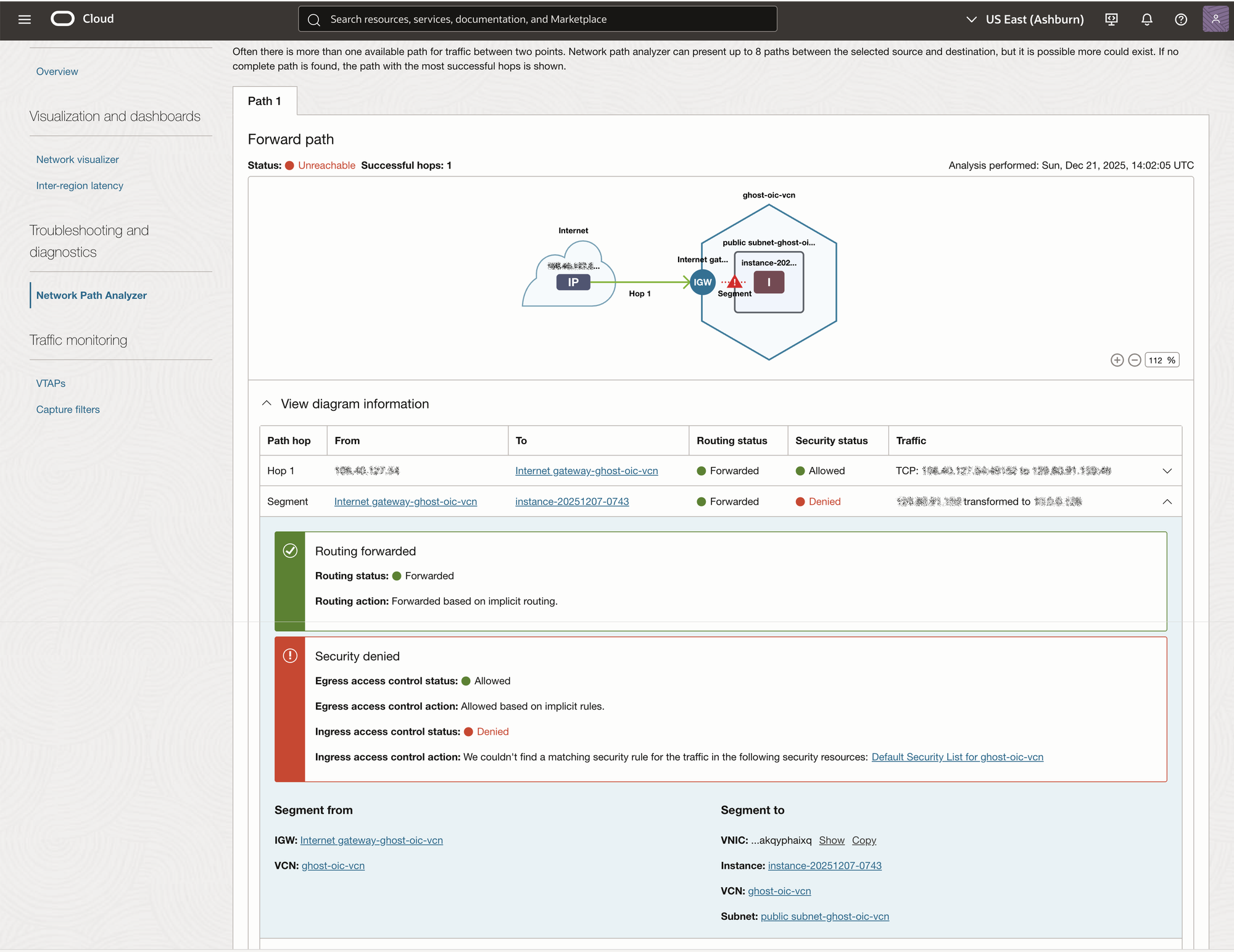
Analysis suggests that I have issues with some security rules. After close examination (for the fifth time!) I've found the root cause. My IPv4 ports 80 and 443 were listed as source ports instead of destination ports.
I rerun the analysis with the corrected Security List and confirm that my public port is accessible in both directions.
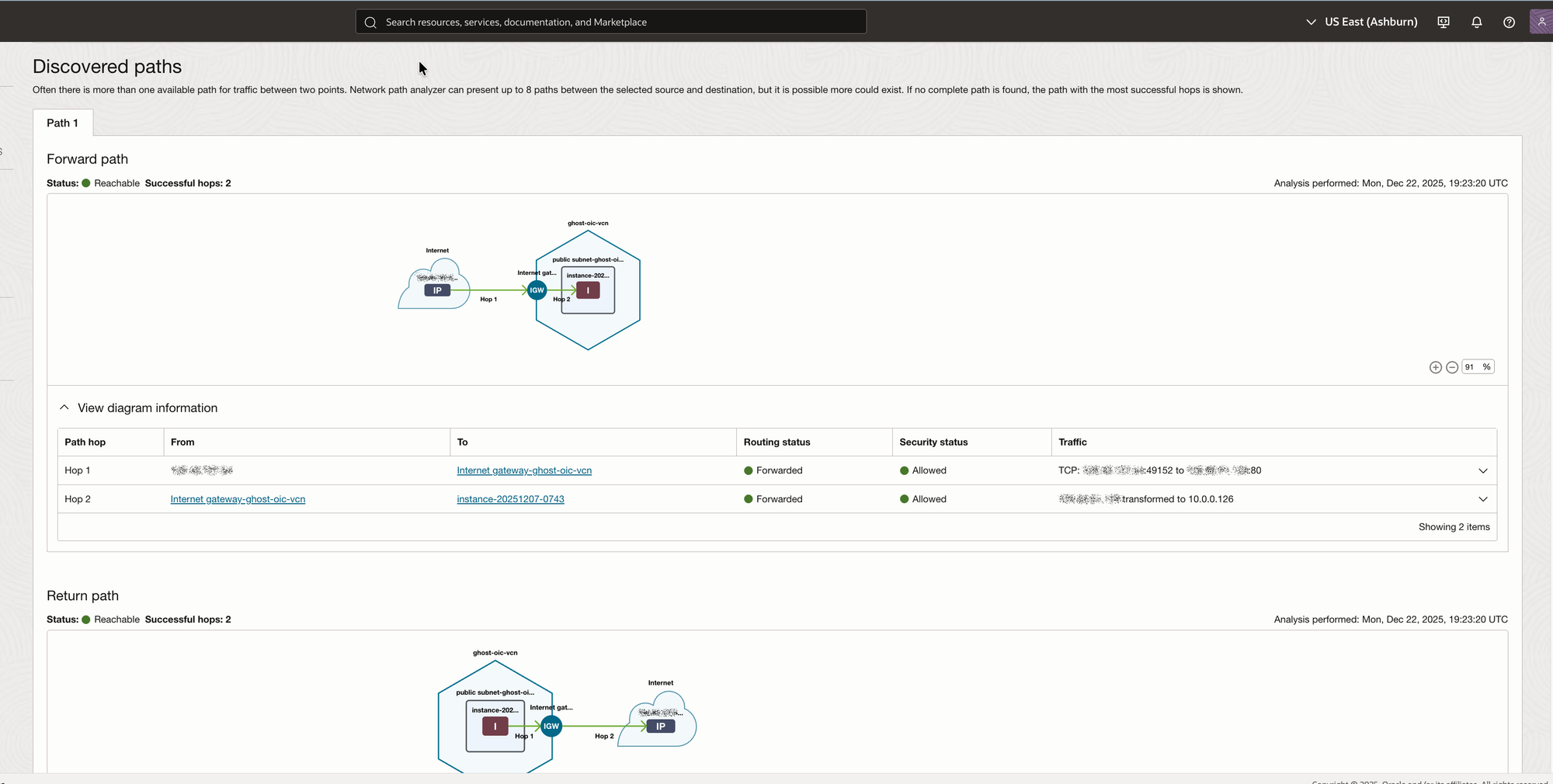
While my minute use case for Network Patch Analyzer seems a little bit excessive, think about:
- Complex, multi-cloud and hybrid environments. Even finding the root cause's vicinity may save you weeks of close examination and cross-team calls.
- Sometimes you have to provide the hard evidence that your network configuration is correct and operable. And nothing is better than a positive report from a trusted source.
To conclude, I should mention that all hyperscalers offer similar functionality. Amazon offers Reachability Analyzer, Google has Connectivity Tests, and Microsoft names it Virtual Network Verifier.